How to Never Run Out of Stock on Amazon

Running out of stock on Amazon is one of the fastest ways to lose momentum you spent months building. Your listing drops in search rankings, the Buy Box disappears, and customers who would have bought from you end up buying from a competitor. The worst part? Once they find a replacement, they often do not come back.
More than 82% of Amazon sellers use FBA, yet many lose money because they do not manage their stock properly. The good news is that preventing stockouts does not require a complicated system. It requires the right habits and the right tools, set up correctly from the start.
This guide shows you how to never run out of stock on Amazon.
Why Stockouts Are More Damaging Than You Think
Most sellers focus on the obvious loss: the sales they did not make while their product was unavailable. That is real, but it is only part of the problem.
Stockouts lead to lost sales and lower your product's ranking in Amazon's search results. When customers cannot find your product in stock, they turn to competitors. Inventory issues such as consistent stockouts also negatively impact your account health and your eligibility for programs like Amazon Prime and the Buy Box.
When your listing goes out of stock, you lose momentum, experience weaker reorder velocity, and face extra fees from rushed shipments. You end up paying more to fix a problem that was preventable.
There is also a financial side people underestimate. Stockouts lead to lost sales, lower rankings, and negative customer experiences. Overstocking, on the other hand, causes high storage fees and unsold inventory, tying up resources unnecessarily. You are trying to thread a needle. Too little stock and you miss sales. Too much and you pay for the privilege of doing so.
Step 1: Set Up Replenishment Alerts in Seller Central
The fastest thing you do today to protect your inventory is set up replenishment alerts in Seller Central. This takes less than two minutes per listing, and it acts as your early warning system before a stockout happens.
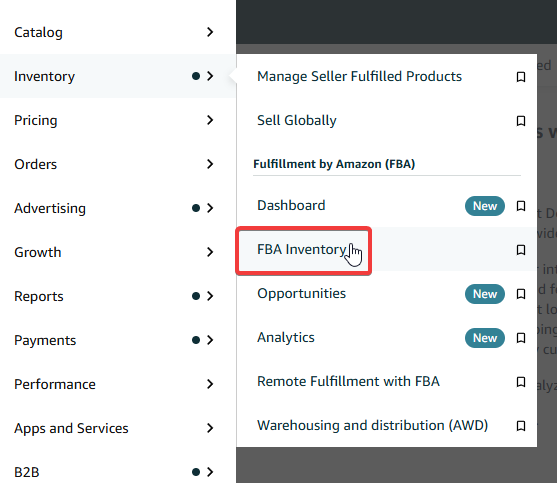
The navigation inside Seller Central has been updated. Here is the current path to set up alerts:
- Click the menu icon on the left sidebar, select Inventory, then click “FBA Inventory.”
- Apply a filter in the Fulfillment section and select “Amazon” to show only your FBA listings.
- Check the boxes next to the SKUs you want to monitor.
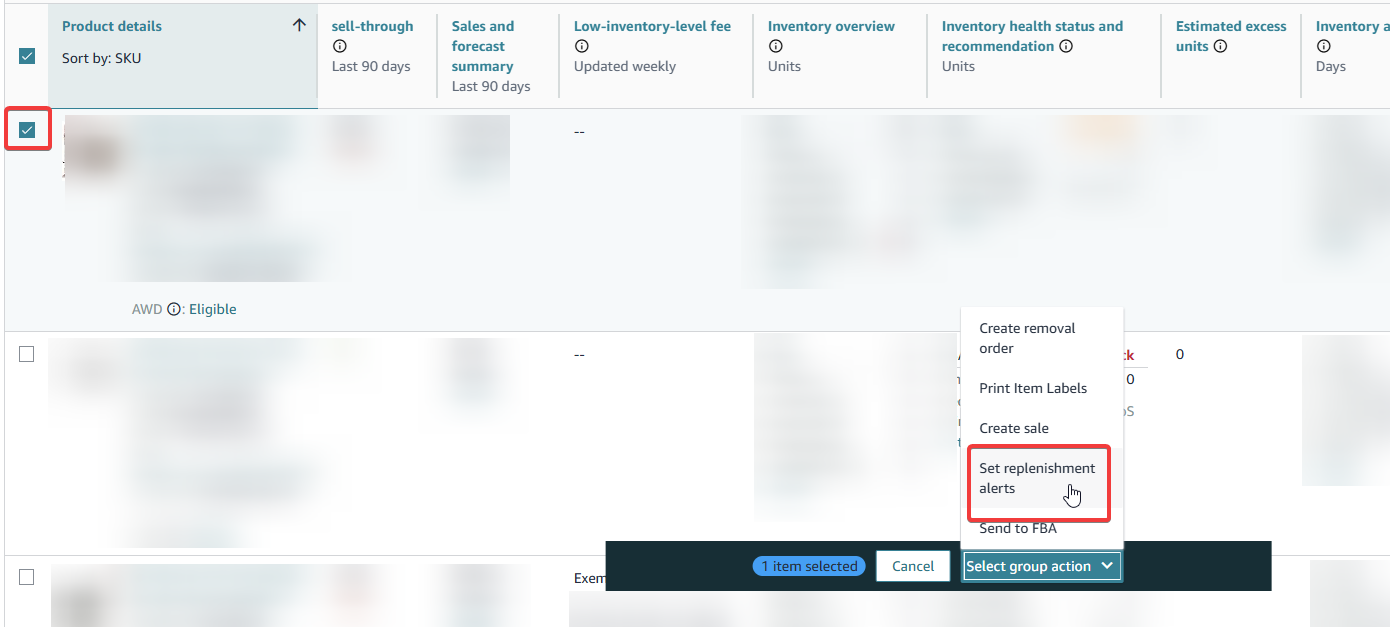
- Click “Select group action,” then choose “Set Replenishment Alerts.” You'll be taken to a new page where you can set, edit and delete replenishment alerts for your items.
- Choose your alert trigger: “When fulfillable quantity reaches (Units)” if you want to be notified whenever your quantity reaches a set number, or “When Weeks-of-Cover reaches (Weeks)” if you want to account for how many weeks it would take for the product to reach Amazon's fulfillment center.
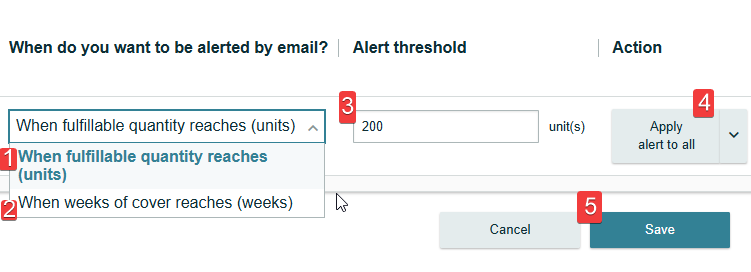
- Click Save.
The gold bell indicates that alerts are set up for that listing but the alert threshold has not been reached. The red bell indicates when your alert threshold for that product has been reached. That red bell is your signal to act.
When deciding on your alert quantity for each product, consider your average sales and the lead time required to order and ship stock to a fulfillment center. Review your thresholds regularly. Sales patterns shift with seasons, promotions, and competitor activity.
Step 2: Know Your Reorder Point Before You Need It
An alert tells you when to act. Your reorder point tells you what to order and when to place the purchase order. These are two different things, and confusing them leads to stockouts even when you have alerts in place.
Your total lead time includes supplier production, domestic transport, export handling, ocean or air transit, import clearance, delivery to Amazon, and the delay between “received” and “available.” If you do not track total lead time, your reorder point is a guess.
The formula looks like this:
Reorder Point = (Average Daily Sales x Total Lead Time in Days) + Safety Stock
If you sell 30 units a day and your total lead time from placing the order to stock being available in FBA is 45 days, you need 1,350 units before you even account for safety stock. Add a buffer on top of that for delays, demand spikes, or supplier issues.
A practical starting point is safety stock of 20% above your regular stock for popular items, adjusted based on factors like seasonality, lead times, and sales volatility.
When calculating your average daily sales, use a window that reflects your current reality. If you were partially out of stock during that period, your numbers will be artificially low and your reorder point will be wrong. Use a recent 14 to 30-day window for products with stable demand.
Step 3: Understand How Restock Limits Work in 2026
Amazon manages two separate limits on your FBA inventory, and confusing them is a mistake that costs sellers real money.
The first is your restock limit. According to Amazon's official Seller Central documentation, restock limits are set per storage type (standard-size, oversize, apparel, footwear) and are based on your past and forecasted sales. Your maximum shipment quantity equals your maximum inventory level minus your current utilization.
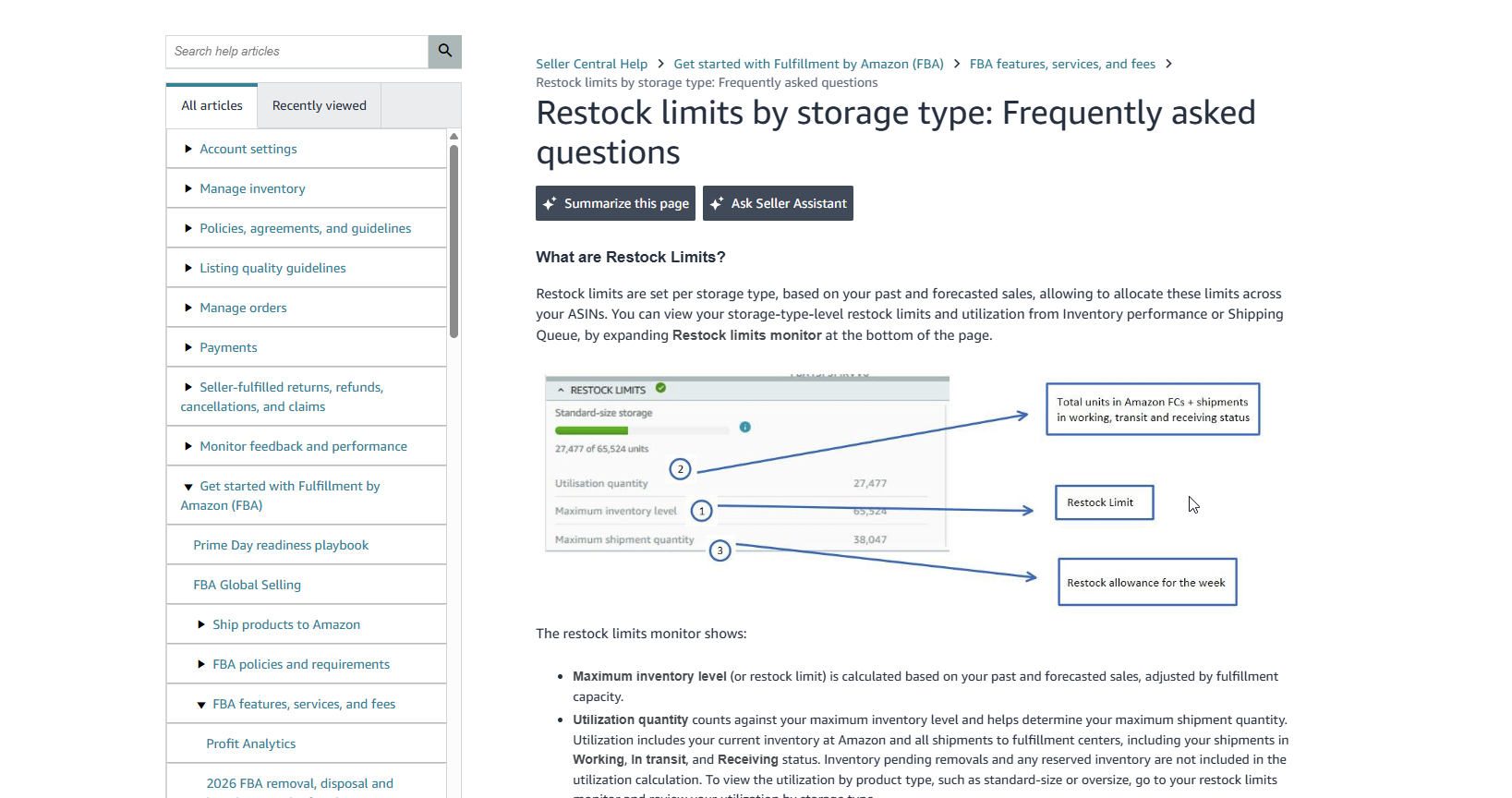
Utilization includes your inventory already at Amazon plus all shipments in transit. Importantly, standard-size, oversize, apparel, and footwear products are no longer subject to ASIN-level quantity limits. You allocate your storage-type limit across your ASINs as you see fit.
The second is your storage volume limit. This is measured in cubic feet and is tied to your IPI score. Your IPI score does not affect your restock limit. It only affects how much physical space you are allocated in Amazon's fulfillment centers. If you fall below the IPI threshold, Amazon restricts your storage volume, not your unit restock limit.
You find both metrics in your Inventory Performance Dashboard. Expand the Restock Limits Monitor to see your maximum inventory level, your current utilization, and your maximum shipment quantity by storage type. Check this before creating any new inbound shipment.
Amazon Policy: Maximum Shipment Quantity
Sending inventory above your maximum shipment quantity is a policy violation and may result in shipment cancellation. If your shipment was created within limits and limits later dropped, that shipment will not be canceled retroactively.
Step 4: Track Your Inventory Performance Index Score
Your IPI score affects how much inventory Amazon lets you store in FBA. The IPI score measures your inventory health and management efficiency based on several factors, including excess inventory, stranded inventory, sell-through rate, and in-stock rate.
The minimum IPI threshold is 400. Falling below this number puts your account at risk of storage limits, higher fees, and restricted shipments. A score of 550 or above gives you benefits like reduced storage fees and more restocking flexibility.
To find your IPI score, go to the Seller Central top-left menu, click Inventory > FBA Inventory, then on the next screen click Inventory > Inventory Performance.
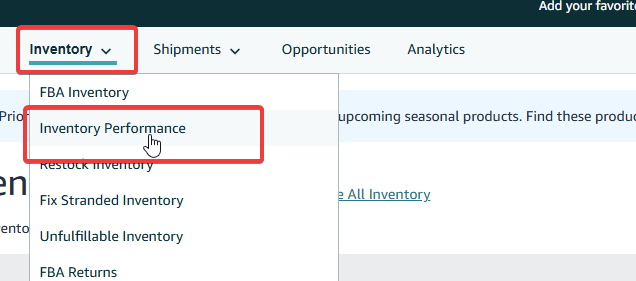
Your score appears at the top left of the page, with a breakdown of the four contributing factors below it. You can also click the IPI box directly on your Seller Central homepage if it appears there.
Amazon assesses your IPI score on Mondays, based on your performance in the last three months. Check it weekly. A score drop toward 400 requires immediate action, not a wait-and-see approach.
Three Things That Hurt Your IPI Score the Most
1. Stranded inventory
Stock sitting in FBA with no active listing. Customers cannot buy it, but you are still paying storage fees. Common causes include listing errors, price violations, and brand gating. Go to Inventory > Fix Stranded Inventory and clear it every week without exception.
2. Excess inventory
Amazon flags inventory as excess if it is not projected to sell in the next 90 days. Use promotions, coupons, or price adjustments to move slow-moving stock before it ages further and triggers higher fees.
3. Low sell-through rate
Amazon recommends keeping your sell-through rate above 2.0. A rate below that flags you for excess inventory, which directly lowers your IPI score.
Step 5: Use Amazon's Demand Forecasting Tools
Guessing how much to order is a losing strategy. Amazon gives you tools to make data-informed decisions, and you should use them consistently. These tools are free and built into Seller Central.
The key ones to know are:
- Restock Inventory Report: Recommends when and how much inventory to send to Amazon's fulfillment centers.
- Inventory Health Report: Gives you a full picture of excess units, sell-through rate, and estimated sales. The Inventory Age Report shows the age of your inventory and identifies items at risk of long-term storage fees.
Amazon's FBA Inventory tool now combines what used to be scattered across multiple reports into a single view, showing restock needs, excess inventory, aged units, unfulfillable inventory, and stranded inventory all in one place.
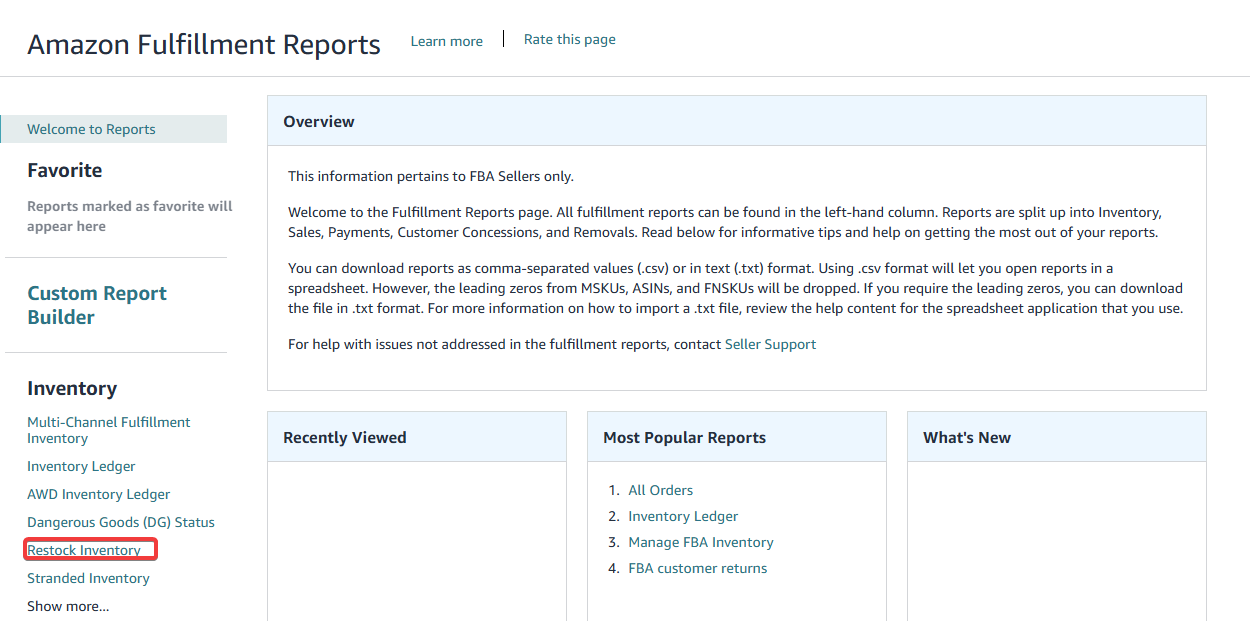
To view your Restock Inventory report, go to Reports > Fulfillment.
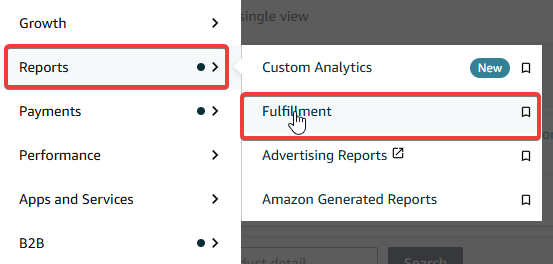
On the next page, select Restock Inventory to review restock suggestions and adjust as needed.
You do not need a paid third-party tool to start making better reorder decisions. What you do need is the discipline to check these reports on a set schedule rather than only when something goes wrong.
For sellers who want to go further, tools like Jungle Scout's Inventory Manager predict future sales based on demand and mark each product as “Reorder Now,” “Reorder Soon,” “Overstock,” or “In Stock” to give a quick overview of your inventory needs. This kind of visibility makes it easier to prioritize which SKUs need attention and which ones are fine for now.
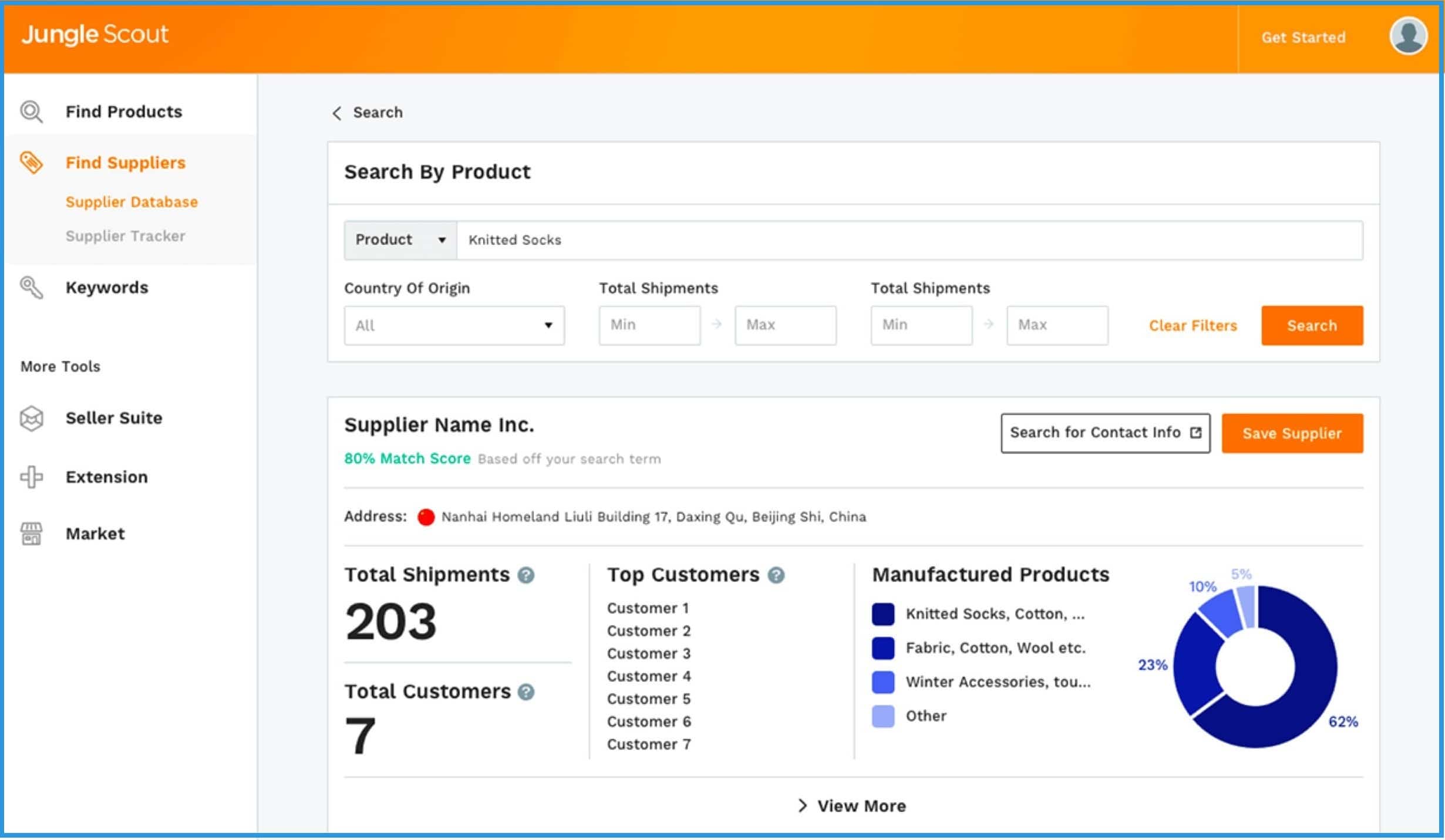
It syncs directly with your Seller Central account and pulls in your real sales data, so the recommendations are based on your actual velocity, not guesses. If you want to stop flying blind on reorders, this is the tool to use.
Step 6: Build a Buffer With Safety Stock
Safety stock is inventory you hold beyond your expected reorder point. It is protection against the things you did not plan for.
Your supplier ships late. Amazon receiving takes longer than expected. A competitor goes out of stock and your sales spike unexpectedly. Any one of these scenarios erases your margin for error. Safety stock is what keeps you in stock when the unexpected happens.

The right amount depends on a few factors that are worth thinking through carefully. Consider how reliable your supplier is on delivery timelines, how volatile your daily sales are, how long your total lead time is, and how important the product is to your overall business. Some factors to build your framework around:
- Supplier reliability: a supplier who regularly ships late needs a larger buffer than one who ships on time consistently
- Sales volatility: products with seasonal demand spikes need more safety stock than steady, predictable sellers
- Lead time length: a 60-day lead time from overseas requires far more safety stock than a 10-day domestic lead time
- Product priority: your top revenue-generating SKUs deserve more protection than slow-moving items
A hero SKU with high margins and strong ranking deserves more safety stock than a slow-moving item. Prioritize your best sellers first, then work down the list.
Step 7: Strengthen Your Supplier Relationships
Your inventory plan is only as strong as your supply chain. If you have a good relationship with your supplier, they will often prioritize your orders over another customer's. Otherwise, you may be waiting a long time for your products to be completed, causing a stockout on your end.
Sellers focus heavily on the Amazon side of their inventory management while neglecting the supplier side. The result is a plan that works perfectly on paper but falls apart the moment a supplier deprioritizes your order.
Communicate your volume forecasts well in advance. If your supplier knows you expect to place a large order in six weeks, they can plan production accordingly. Pay on time. Be clear about your specs. Make their job easier, and they are more likely to return the favor when you need a fast turnaround.
Step 8: Use a 3PL as a Buffer
A third-party logistics provider stores your inventory outside of Amazon's fulfillment centers. You hold more stock at the 3PL and ship batches to Amazon as needed. With the 90-day ASIN-level cap now active, this is no longer just a nice option for larger sellers. It is a practical necessity for anyone with fast-moving products.
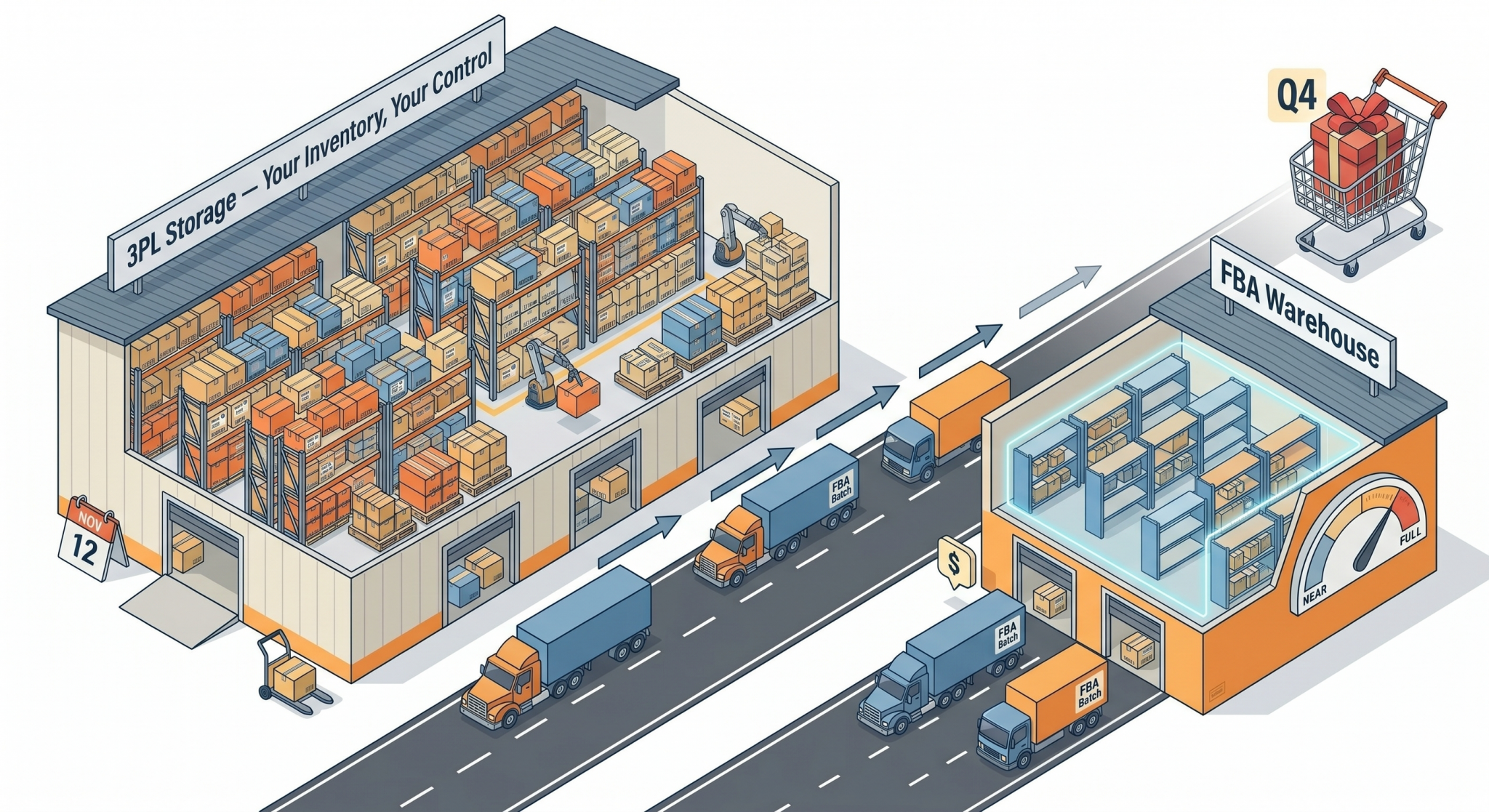
Partnering with a 3PL lets you store excess inventory off-site and ship products to Amazon as needed, helping you avoid storage limit issues while keeping products available.
This strategy is especially useful during Q4, when demand is high and Amazon's capacity limits create tight constraints. Having a 3PL means you hold the stock and control the flow rather than depending entirely on what Amazon allows in at any given time.
The tradeoff is cost. You pay for storage at the 3PL on top of your FBA fees. Run the numbers and compare the cost of 3PL storage against the cost of running out of stock before you decide.
Step 9: Watch for Stranded and Reserved Inventory
Two inventory categories silently eat into your available stock if you ignore them. Both are worth checking on a fixed weekly schedule.
Stranded Inventory
Stranded inventory sits in Amazon's warehouse but has no active listing attached to it. You can't sell it, but you still pay storage fees on it.
Common causes include:
- Listing errors
- Price violations
- Brand gating
To find it, open the left sidebar menu, click Inventory, then select FBA Inventory. This opens the FBA Dashboard, where Amazon surfaces stranded inventory alerts and notifications.
Work through every flagged ASIN weekly. Most fixes take only a few minutes. For inventory you genuinely cannot relist, create a removal order immediately to stop the storage fees from compounding.
Amazon also notifies you about stranded inventory by email. Do not wait until your weekly check if one of those emails comes in. Act on it the same day.
Reserved Inventory
Reserved inventory is stock Amazon has set aside for processing, transfers between fulfillment centers, or pending orders. If your reserved inventory is consistently high, you are running with less sellable stock than your records show. You may think you have 500 units available but only 380 are actually purchasable by customers.
It is also worth noting that reserved inventory does not count against your restock limit utilization. So if your maximum shipment quantity looks lower than expected, check whether a significant portion of your stock is sitting in reserved status before drawing conclusions.
Check both categories through the FBA Dashboard every week. Both are fixable, but only if you catch them early enough to act before the fees and ranking damage add up.
Putting It All Together
Preventing stockouts comes down to three things: knowing where your inventory stands, knowing when to reorder, and building enough buffer to handle supply chain surprises.
Start with replenishment alerts. They cost nothing and take two minutes to set up. From there, calculate your reorder point using real sales data and actual lead times, build in safety stock, and check your IPI score and restock limits weekly through the FBA Dashboard.
Remember that your restock limit and storage volume limit are two separate systems. Managing one does not fix the other.
When you get inventory management right, you free up capital, stay in stock on your best sellers, and grow without unnecessary stress. That is the goal.